Mods in Minecraft: Installation Guide
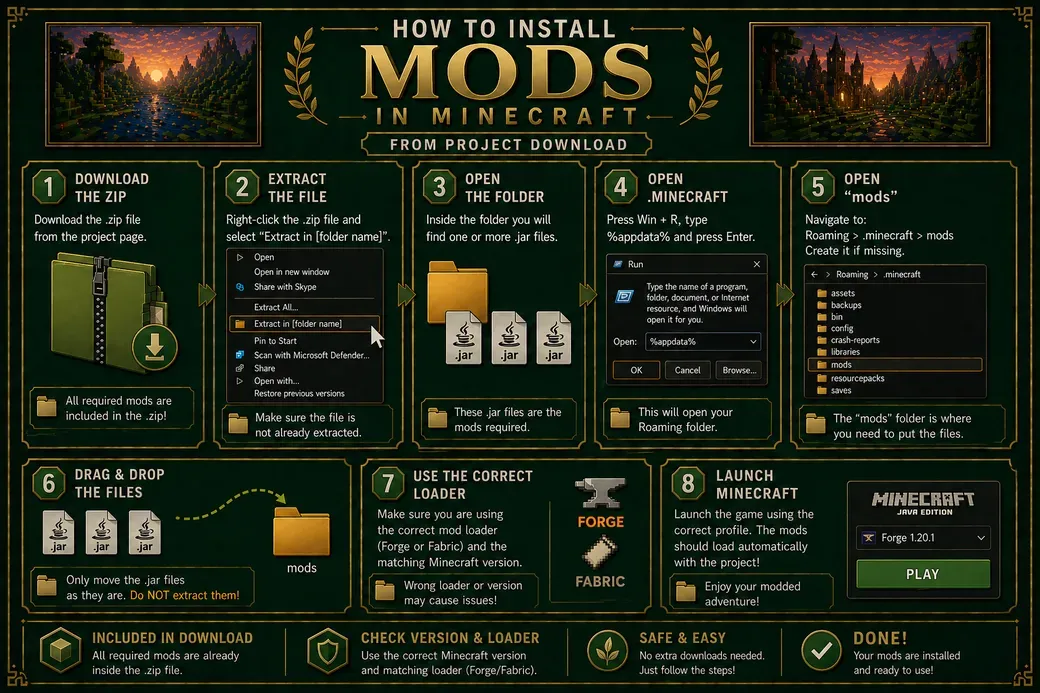
This guide explains how to install the mods included with my project downloads.
When downloading one of my builds, you may find a .zip file containing all the required mods. Make sure the file is not already extracted, then right-click and select “Extract in [folder name]”.
Inside the extracted folder, you will find one or more .jar files — these are the mods required for the project.
Press Win + R, type %appdata% and press Enter. This will open the Roaming folder. Then navigate to:
Roaming → .minecraft → mods
Drag and drop all the .jar files into the mods folder. Do not extract them.
Make sure you are using the correct mod loader (such as Forge or Fabric) and the matching Minecraft version.
Launch the game using the correct profile. The mods should now load automatically with the project.
If something doesn’t work, double-check that all mods are installed and that no files are missing from the original download.
Unlock the Full Build Experience
Load My Builds the Right Way When downloading my full maps, some projects may include required mods. If you’re not familiar with the setup, this guide will help you install everything correctly so the build works exactly as intended.